
🚀 How to Setup Your Shoroc Iptv Subscription on MAG Box
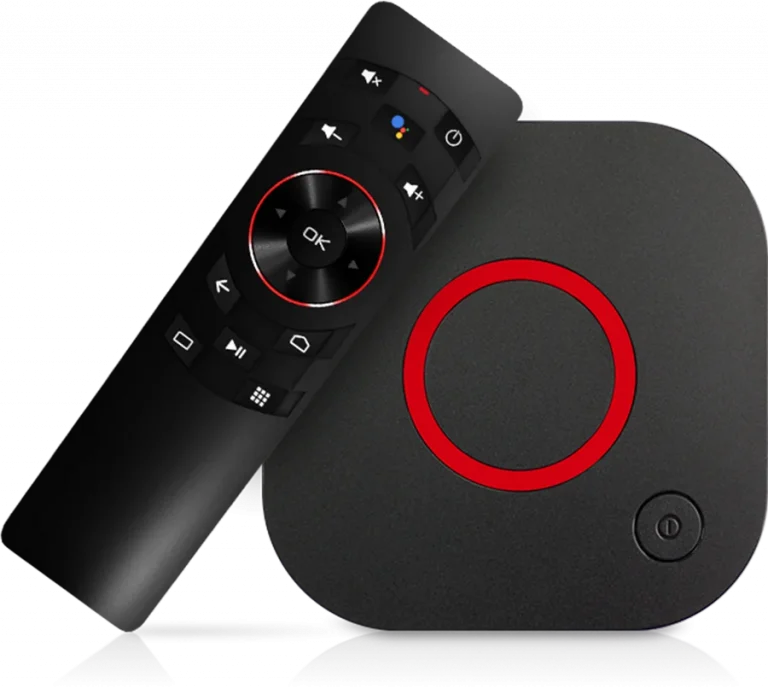
MAG Boxes (MAG 250, 254, 322, 544, etc.) are classic IPTV devices known for their stability. Unlike other devices, MAG boxes use a Portal URL tied to your device’s MAC Address.
🟢 Step 1: Locate Your MAC Address
Before you begin, you must provide your MAC Address to Shoroc Iptv support so they can activate your device on our servers.
- Look for a sticker on the bottom of your MAG box.
- It will look like this:
00:1A:79:XX:XX:XX. - Send this MAC address to Shorociptv.com/contact before proceeding.
🟢 Step 2: Access System Settings
- Turn on your MAG Box and let it load (if it says “Page Loading Error,” click ‘Settings’ or ‘Setup’ on your remote).
- Navigate to System Settings.
🟢 Step 3: Configure Portals
- Select Servers.
- Select Portals.
- Portal 1 Name: Type Shoroc Iptv
. - Portal 1 URL: Enter the Portal URL provided in your Shoroc Iptv welcome email.
- Note: Ensure the URL is typed exactly, including
http://.
- Note: Ensure the URL is typed exactly, including
- Press OK (or the Yellow button) to save.
🟢 Step 4: Reboot Your Device
- Go back to the main System Settings screen.
- Select Restart Portal or simply unplug your device and plug it back in.
- The box will now load the Shoroc Iptv interface directly.
🟢 Comparison: MAG Box vs. Other Players
| Feature | MAG Box | IPTV Smarters |
| Stability | 🏆 Best (Dedicated Hardware) | High (Software Based) |
| User Interface | Classic / Minimalist | Modern / Graphic |
| Setup Type | MAC Activation | Username / Password |
| Channel Switching | Instant | Fast |
🟢 Troubleshooting Tips
- “Authentication Failed”: This usually means your MAC address hasn’t been activated yet or the Portal URL has a typo.
- “Check Network”: Ensure your Ethernet cable is plugged in. MAG boxes are very sensitive to network drops.
- Incorrect Time: If your TV Guide (EPG) is wrong, go to System Settings > Localization and set your correct time zone.
🆘 Need Assistance?
If your portal is not loading or you haven’t received your Portal URL yet, please contact our technical team:
👉 Visit: Shorociptv.com/contact